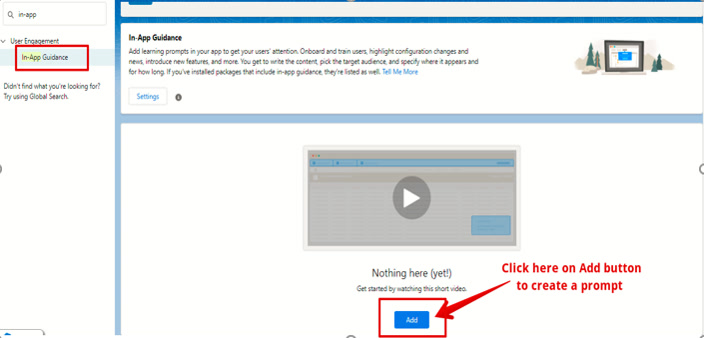
Introduction to Salesforce Lightning – In App Guidance
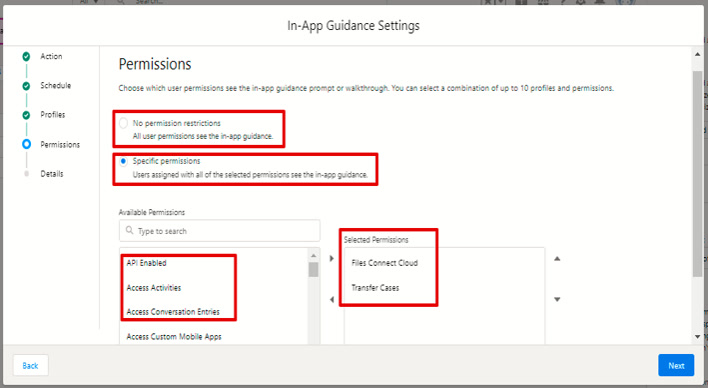
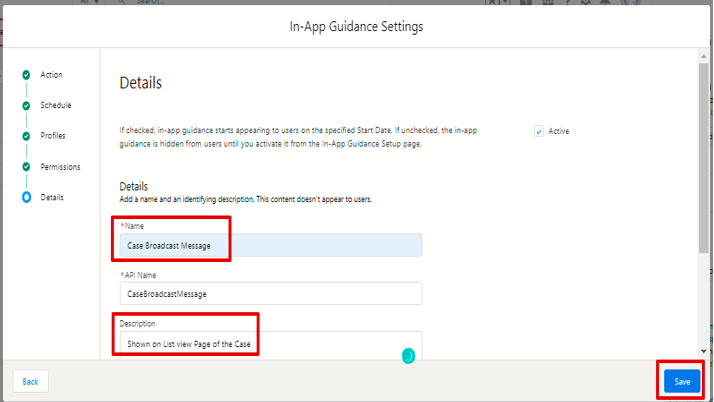
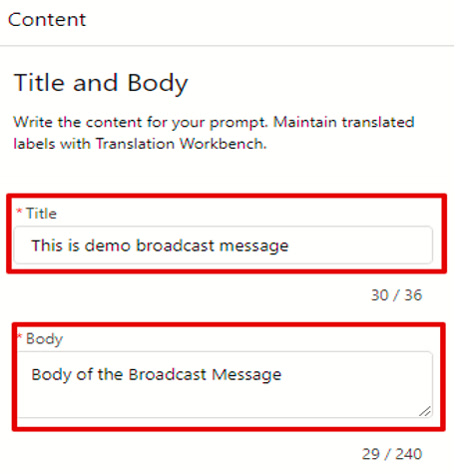
- Finally, you are giving the prompt itself a name and a description & click Save.
-
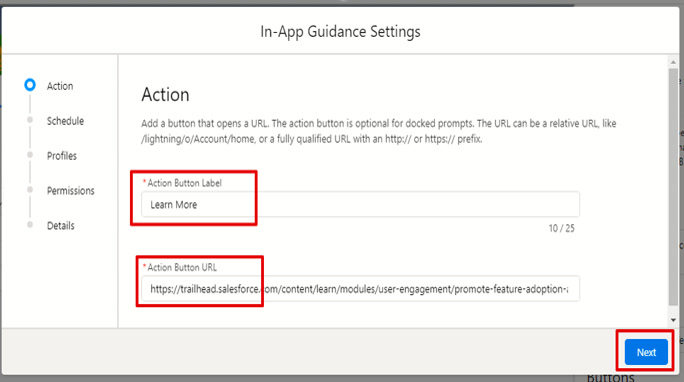
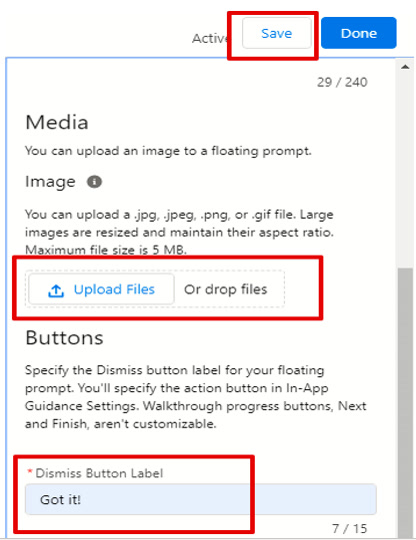
By Clicking on the Learn More button, you will be redirected to the Action Button URL you saved earlier. And by clicking on the Got it button, the prompt will get dismissed.
-
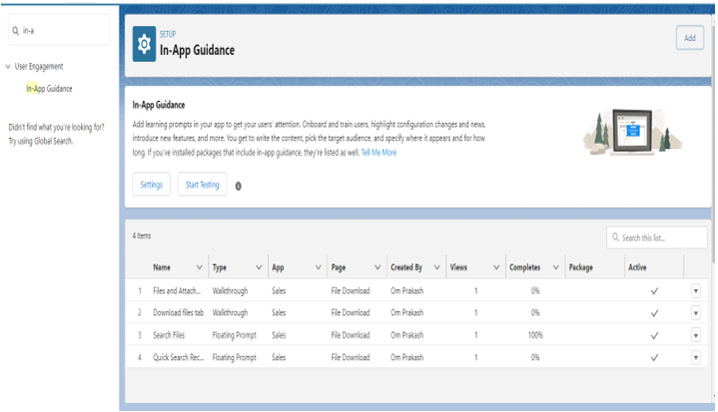
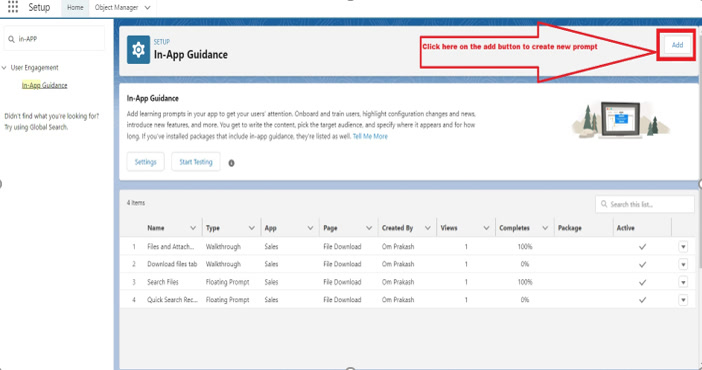
From the In-App Guidance Page from Setup, you’ll see the Views of the prompt, its active status & can edit if you need to make any changes.
Who can create an In-App Guidance prompt?
For this, you have to go on Individual Profile and allow the In-App Guidance setting in it.
-
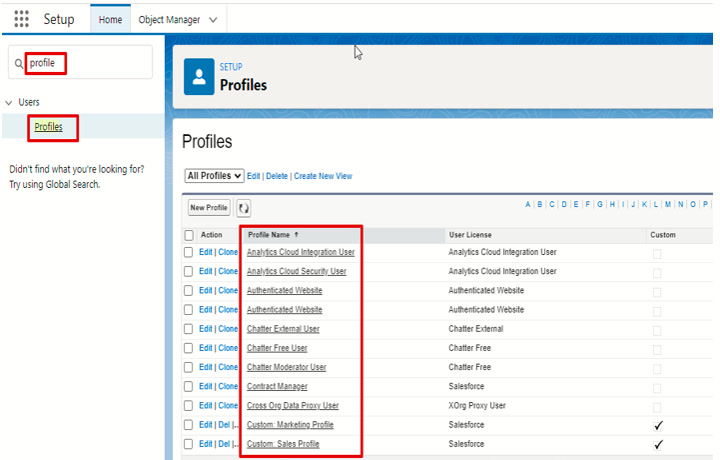
First, Go to Profiles from the Quick Find box on Setup.
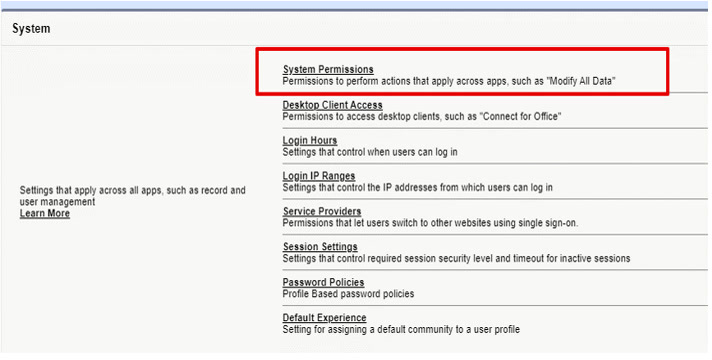
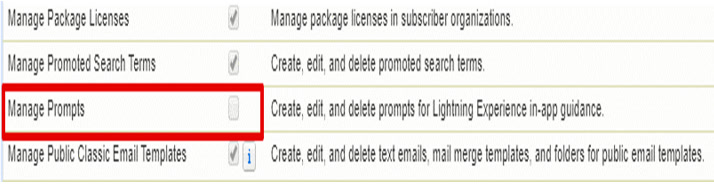
- Select the Profile to whom you want to give create/edit/delete Access. Then Scroll below & Go to Profile’s System Permissions.
- After this Edit & Enable the Manage Prompts permission & save it.
Conclusion:
With In-App Guidance, you can develop and distribute prompts and walkthroughs to your teams with only a few clicks rather than coding. Consider bite-sized pieces of content that are easy for your staff to consume and produce immediate effects. Although Salesforce provides hand-picked resources to assist users in working with the app, you can take the Help Menu to the next level by creating a custom section that appears globally. In addition, employees can access In-App Guidance prompts and walkthroughs at any time by adding links to them.